Cloudflare Error 520 vs Nginx 502: A Practical Troubleshooting Guide
A read-first diagnostic guide to Cloudflare Error 520 and Nginx 502 responses, including origin health, upstream checks, safe curl tests, logs, and post-change verification.
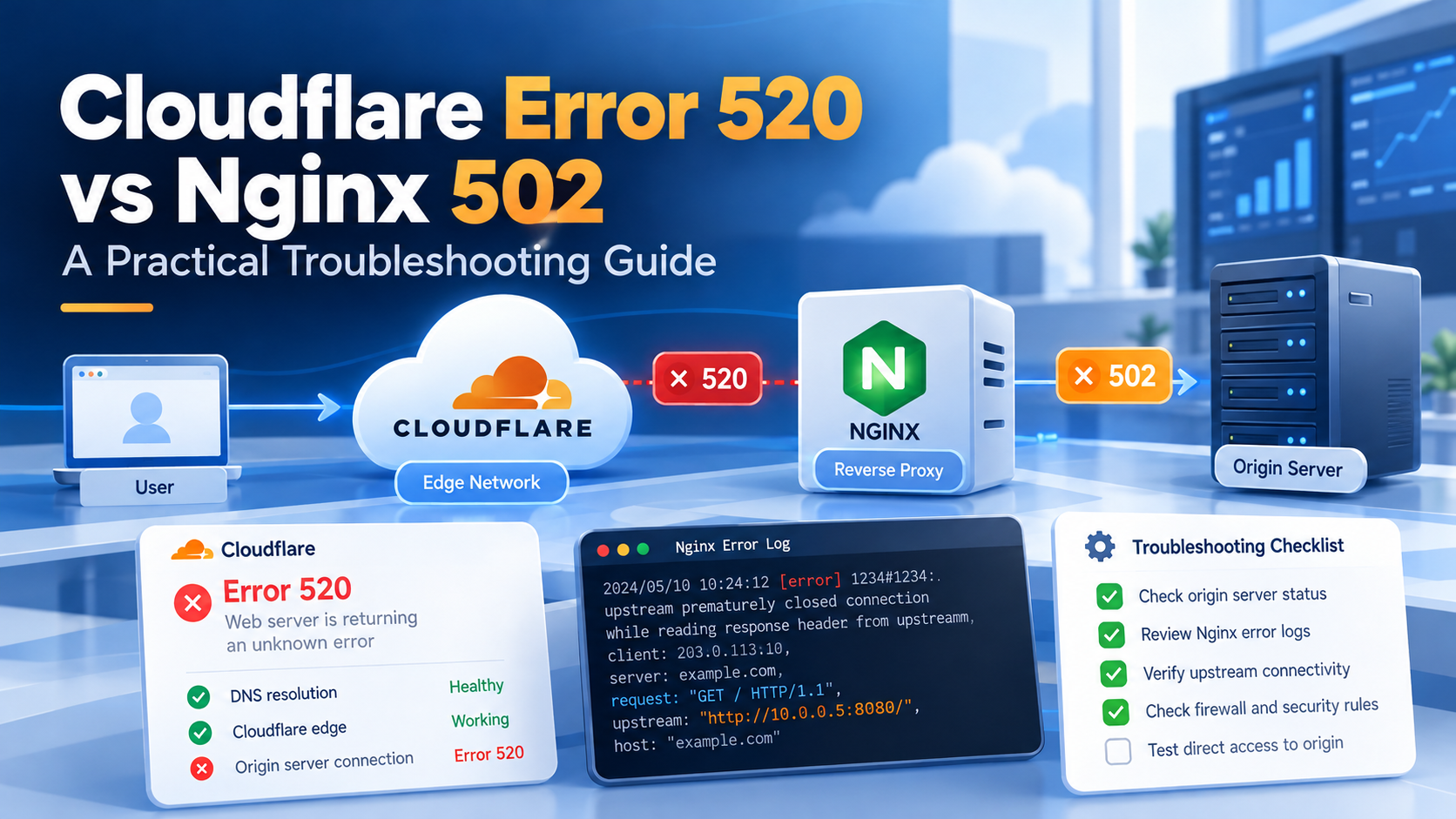
A site can be unreachable while the VPS is running and the Nginx service is active. A visitor might see Cloudflare Error 520, 502 Bad Gateway, or a failure that affects only one page or API route.
The right first step is not to restart every service or disable the firewall. Identify where the request path breaks, collect evidence, and apply the smallest justified change.
This guide describes an authorized, read-first workflow for Linux servers running Nginx behind Cloudflare, with optional application backends such as Python or Node.js. Commands are illustrative diagnostics; they are not results from a specific production outage.
1. Cloudflare 520: what it actually means
Cloudflare describes Error 520 as an empty, unknown, or unexpected response from an origin server.
Possible causes include:
- The origin application crashes or closes a connection unexpectedly.
- A web server or reverse proxy is misconfigured.
- A firewall or security plugin improperly blocks Cloudflare requests.
- HTTP response headers are malformed or exceed Cloudflare’s limits.
- An HTTP/2-to-origin configuration behaves incorrectly.
- An origin server returns no valid HTTP response.
Cloudflare may generate the visible error page even when the underlying cause is on the origin server.
Do not infer the root cause from the 520 code alone. Investigate timestamps, affected URLs, origin logs, and—when available—the Cloudflare Ray ID.
2. Nginx 502: what it tells you
502 Bad Gateway means that a server acting as a gateway or proxy received an invalid response from an upstream server. Nginx can generate this when its backend application does not respond correctly.
Typical causes are:
- The backend process is stopped or crashed.
- The configured upstream host or port is wrong.
- The upstream is refusing or resetting connections.
- An application sends invalid HTTP headers or output.
- The backend and proxy disagree about the expected protocol.
A 502 displayed through Cloudflare is not necessarily an Nginx-generated 502. Determine which layer returned the status before changing proxy configuration.
3. Diagram the request path
Before troubleshooting, write down the expected request path.
Visitor
   |
   v
Cloudflare edge
   |
   v
Origin VPS / firewall
   |
   v
Nginx virtual host
   |
   +--> Static files
   |
   +--> proxy_pass --> Application on loopback
A static route might work while an API route fails because only the API depends on an upstream process.
Testing the components separately prevents unnecessary changes to unrelated sites on the same VPS.
4. Collect a read-only server baseline
On the authorized server, begin with basic health checks:
uptime
free -h
df -h
systemctl --failed
systemctl status nginx --no-pager
sudo ss -lntp
Look for:
- Low available memory or an out-of-memory event.
- Full filesystems that prevent writing logs or application state.
- Failed units or repeatedly restarting services.
- Missing listeners on expected local ports.
- A mismatch between the documented architecture and actual processes.
An active Nginx service only confirms that the service is running. It does not prove that every upstream is healthy or that the public HTTPS route succeeds.
5. Validate Nginx and inspect errors
Check syntax before editing or reloading the server:
sudo nginx -t
sudo tail -n 100 /var/log/nginx/error.log
sudo journalctl -u nginx --since "30 minutes ago" --no-pager
The exact log location can differ among distributions and virtual hosts.
Pay attention to messages such as:
| Nginx log message | Direction of investigation |
|---|---|
| Connection refused while connecting to upstream | Backend process, bind address, or port |
| Upstream prematurely closed connection | Application crash, exception, or connection handling |
| Upstream sent invalid header | HTTP response format or protocol mismatch |
| No live upstreams | Upstream pool configuration and service health |
Those messages are clues, not complete diagnoses. Correlate them with application logs and the exact time of a failed request.
Avoid publishing raw production logs that contain tokens, cookies, usernames, or private network information.
6. Test the upstream separately
For a reverse-proxy route, find the configured upstream address and health endpoint. An example application might listen only on loopback port 8000:
curl -v http://127.0.0.1:8000/health
This is a placeholder example, not a command that necessarily matches your deployment.
Interpret the result carefully:
- Connection refused: nothing is accepting connections at the target address and port.
- HTTP 200: that endpoint responded, but other routes still need testing.
- HTTP 500: the service is reachable but encountered an application-level problem.
- Timeout: investigate the process, socket state, resource pressure, and request handling.
If systemd manages the application, examine that unit’s status and logs. If a container manages it, use the corresponding container logs and health information.
Do not open a loopback-only API port to the public internet just to simplify a diagnostic test.
7. Distinguish Cloudflare failure from origin failure
Compare three kinds of evidence:
- Client observation: requested URL, time, error code, and Ray ID if present.
- Origin observation: Nginx access and error logs at the same time.
- Backend observation: application health, logs, and listening sockets.
On an authorized system, an approved direct-origin test may help distinguish the Cloudflare path from the origin path. It should preserve the correct hostname, intended TLS behavior, and access controls.
For example, curl supports a hostname-to-address override with the --resolve option:
curl -I --resolve example.com:443:203.0.113.10 https://example.com/
Here 203.0.113.10 is a documentation-only IP address, not a production origin. Replace both the hostname and address with values from infrastructure you administer.
Do not switch off firewall protections, disable TLS verification, or expose the origin publicly merely to make a test pass.
If the origin fails independently, investigate it first. If the origin behaves correctly while proxied requests fail, review Cloudflare configuration and diagnostics—including whether the request reached the origin at all.
8. Fix the verified cause, not the symptom
Choose the smallest change supported by evidence.
Examples:
- Correct an incorrect upstream address or port.
- Restore a backend service that failed for a known reason.
- Repair malformed application response headers.
- Resolve confirmed resource exhaustion.
- Correct a security rule that unintentionally blocks authorized edge traffic.
Increasing a proxy timeout will not repair a refused connection. Restarting Nginx may temporarily hide a recurring application crash. Disabling Cloudflare protections should not be a default diagnostic shortcut.
For changes on a shared VPS, protect other virtual hosts and keep a rollback path.
9. Verify the entire public request path
After an approved correction, repeat the tests:
sudo nginx -t
curl -I https://example.com/
Also check representative dynamic routes, upstream health, and recent error logs. Confirm the public URL through Cloudflare if Cloudflare is part of the intended production architecture.
Document the following:
- Symptom, first observed time, and impacted routes.
- What the logs and commands showed.
- Confirmed or most likely root cause, with uncertainty noted.
- Exact configuration or service change.
- Verification result and rollback plan.
This turns an emergency fix into reusable operational knowledge.
Conclusion
Cloudflare 520 and Nginx 502 are different symptoms, but both benefit from the same reliable process:
Observe → Isolate → Verify → Correct → Retest
The goal is not merely to remove an error page. It is to understand the broken request path and demonstrate that the intended service is healthy again.
For related infrastructure practices, see my Linux Server Hardening checklist and GitHub Actions to Nginx deployment guide.
References
TA551 / RELATED
Related articles
Linux
Linux Server Hardening: A Practical Review Checklist
A practical, evidence-first Linux VPS security checklist covering SSH access, least privilege, exposed ports, Nginx, TLS, updates, logging, backups, and safe deployment.
Automation
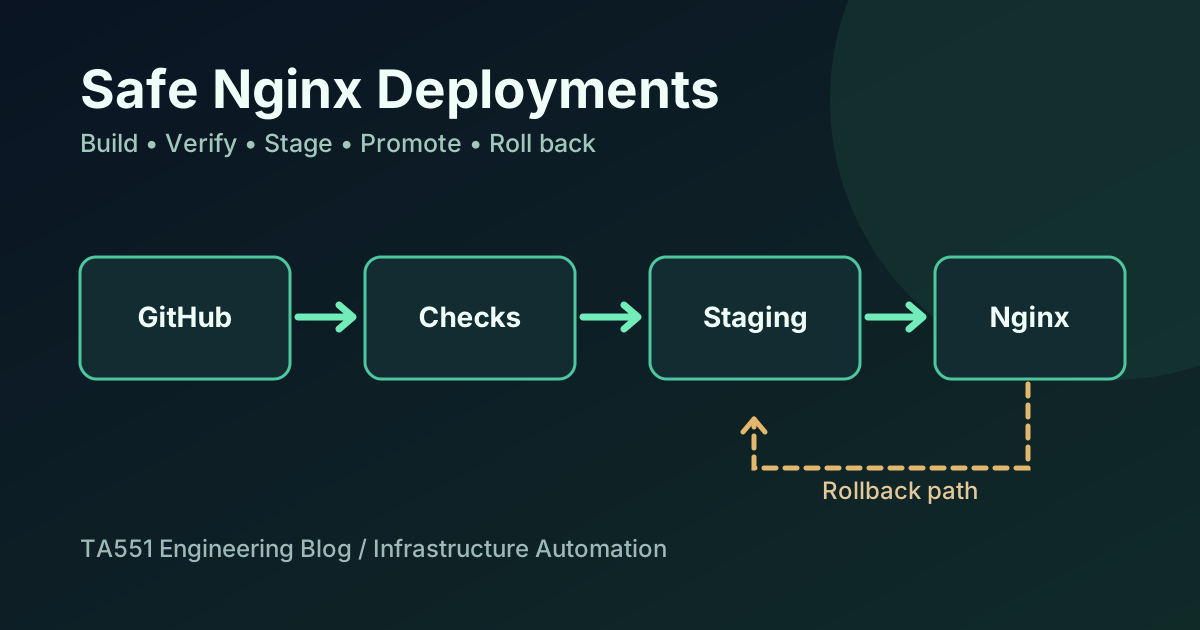
Safe Nginx Deployments with GitHub Actions and Rollback
An engineering case study of how I staged and verified a blog and portfolio update on a shared Nginx VPS without overwriting unrelated websites or API routes.

Automation
Google Search Console: Redirect and Canonical Issues Explained
How to interpret Page with redirect and Alternate page with proper canonical tag in Google Search Console, verify the affected URLs, and avoid unnecessary SEO changes.